
Salesforce context, on every call.
Connect Salesforce so your voice agent finds the caller, works with leads, accounts, opportunities and cases, and writes tasks and notes back to the record.
What your agent can do
with Salesforce.
Reads during the call
- Contacts by phone number
- Leads, accounts, opportunities and cases
- Custom objects and SOQL queries you set up
Writes back
- New and updated contacts and leads
- Account and custom object updates
- Tasks and notes on the record
Look-up actions
- Search Contact
- Get Contact
- Get Lead
- Get Account
- List Account Opportunities
- Get Opportunity
- Get Case
- Get User
- Get Custom Object
- Query Records
Update actions
- Create Contact
- Update Contact
- Create Lead
- Update Lead
- Update Account
- Create Task
- Create Note
- Update Custom Object
A call, start to finish.
- Caller rings
The agent finds the contact by phone number and loads the account.
- During the call
It checks the open opportunity or case and answers from the record.
- Wrapping up
It creates a follow-up task and a note on the contact.
Example workflow. Your agent runs only the actions you add, with the inputs you choose.
How to connect Salesforce.
Step by step, with screenshots.
You will need: Salesforce instance URL with a connected app’s client ID and secret
01In Salesforce
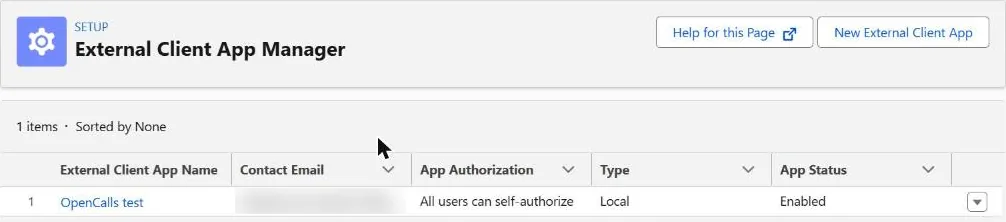
Open the External Client App Manager
In Salesforce Setup, search for External Client App Manager and click New External Client App. Fill in the name and contact email.
Turn on OAuth and the client credentials flow
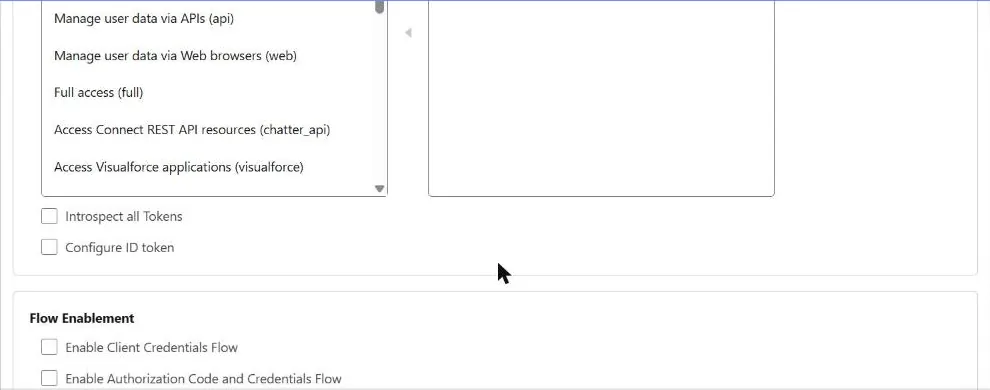
Under API (Enable OAuth Settings), tick Enable OAuth, add the Manage user data via APIs (api) scope and tick Enable Client Credentials Flow. Create the app, then set its run-as user in the app’s policies.
Copy the consumer key and secret
In the app’s Settings, open OAuth Settings and click Consumer Key and Secret. Copy both, and note your My Domain URL, such as https://acme.my.salesforce.com.

02In OpenCalls
Open Integrations in OpenCalls
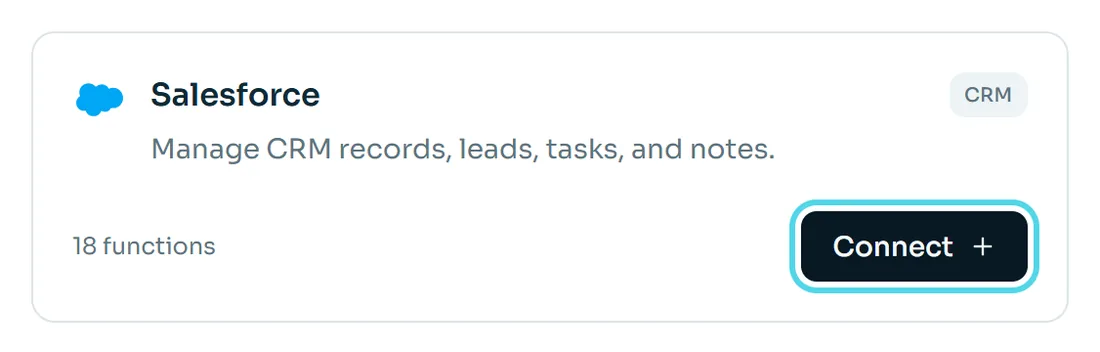
Go to Integrations, open the Available tab and click Connect on the Salesforce card.
Enter your connection details
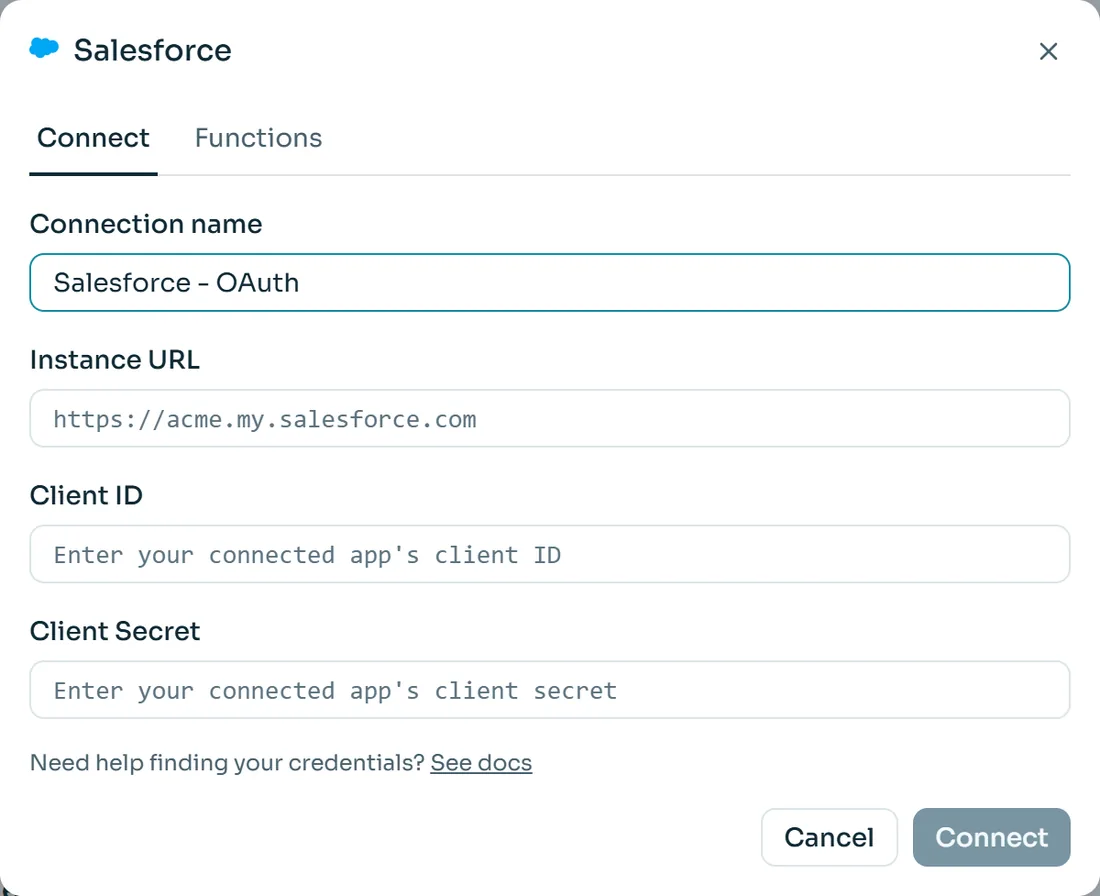
Enter your Instance URL, Client ID and Client Secret, then click Connect.
03Use it in your agent
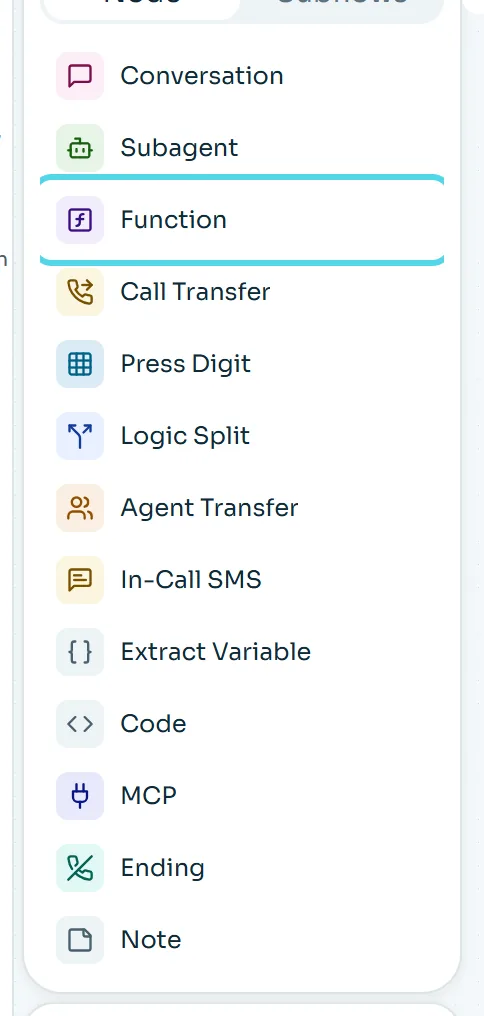
Add a Function node
Open your agent’s flow and click Function in the Node panel.
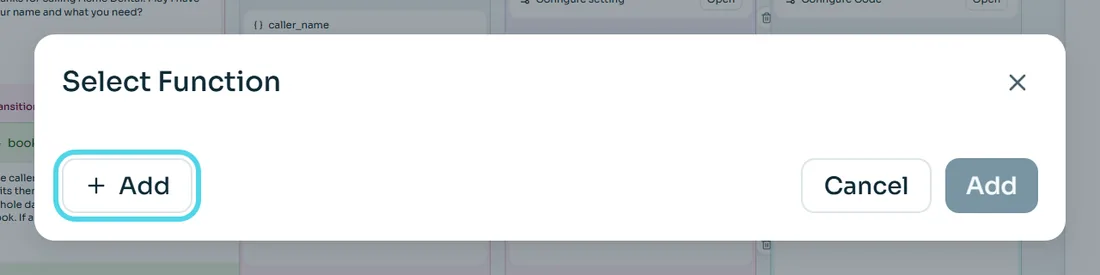
Click Add
In Select Function, click Add to pick a new function.
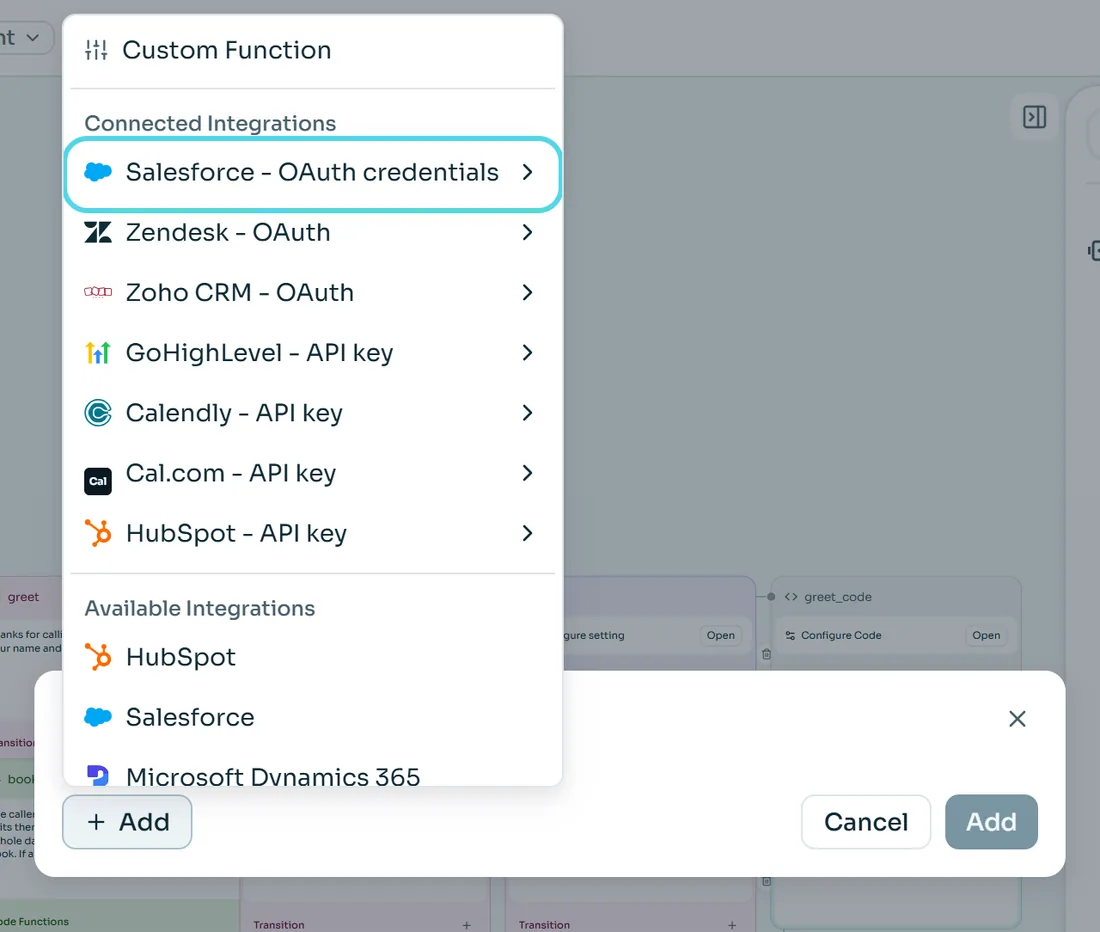
Choose your Salesforce connection
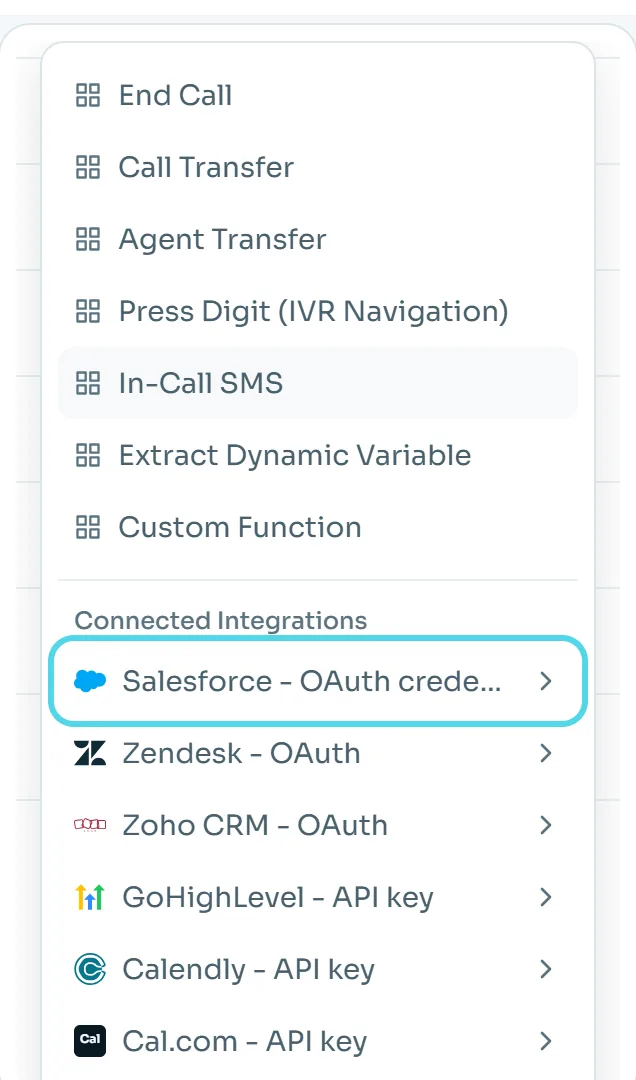
Your Salesforce connection is listed under Connected Integrations.
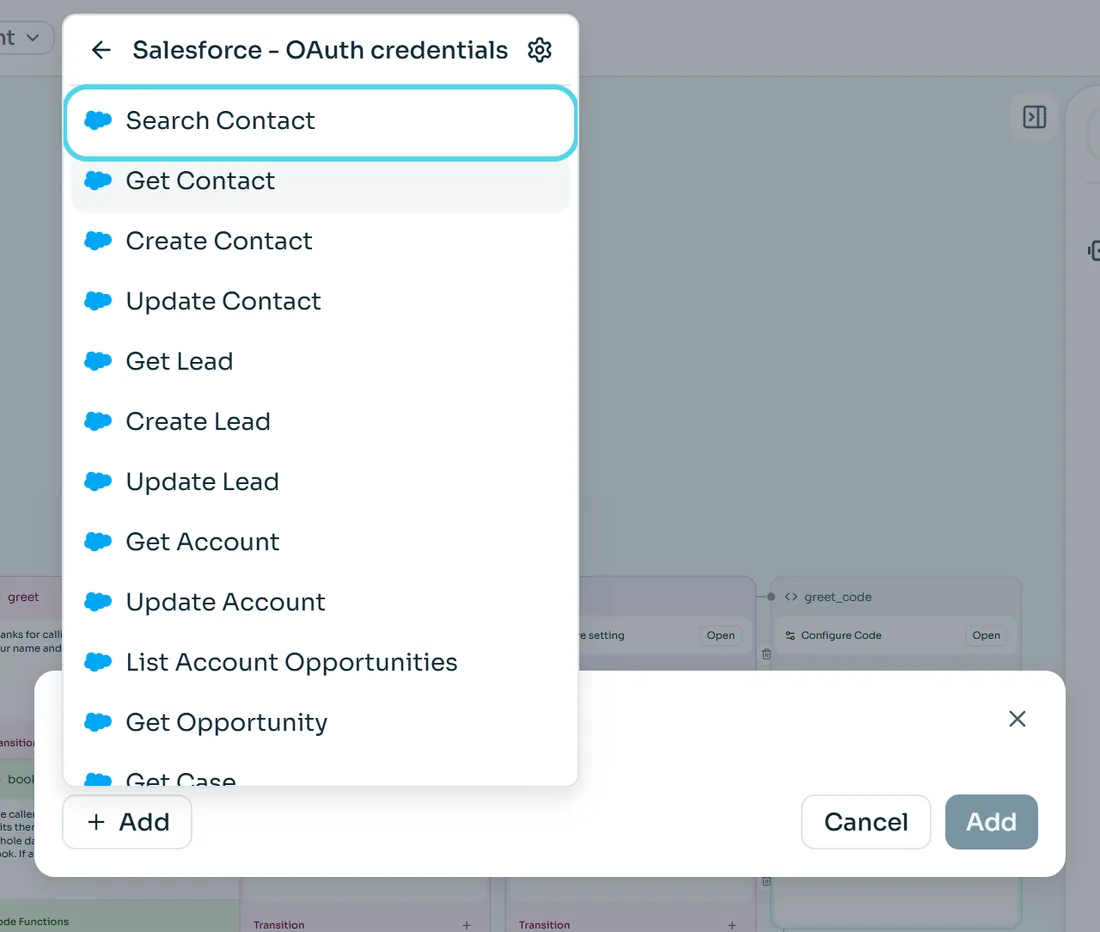
Pick the function
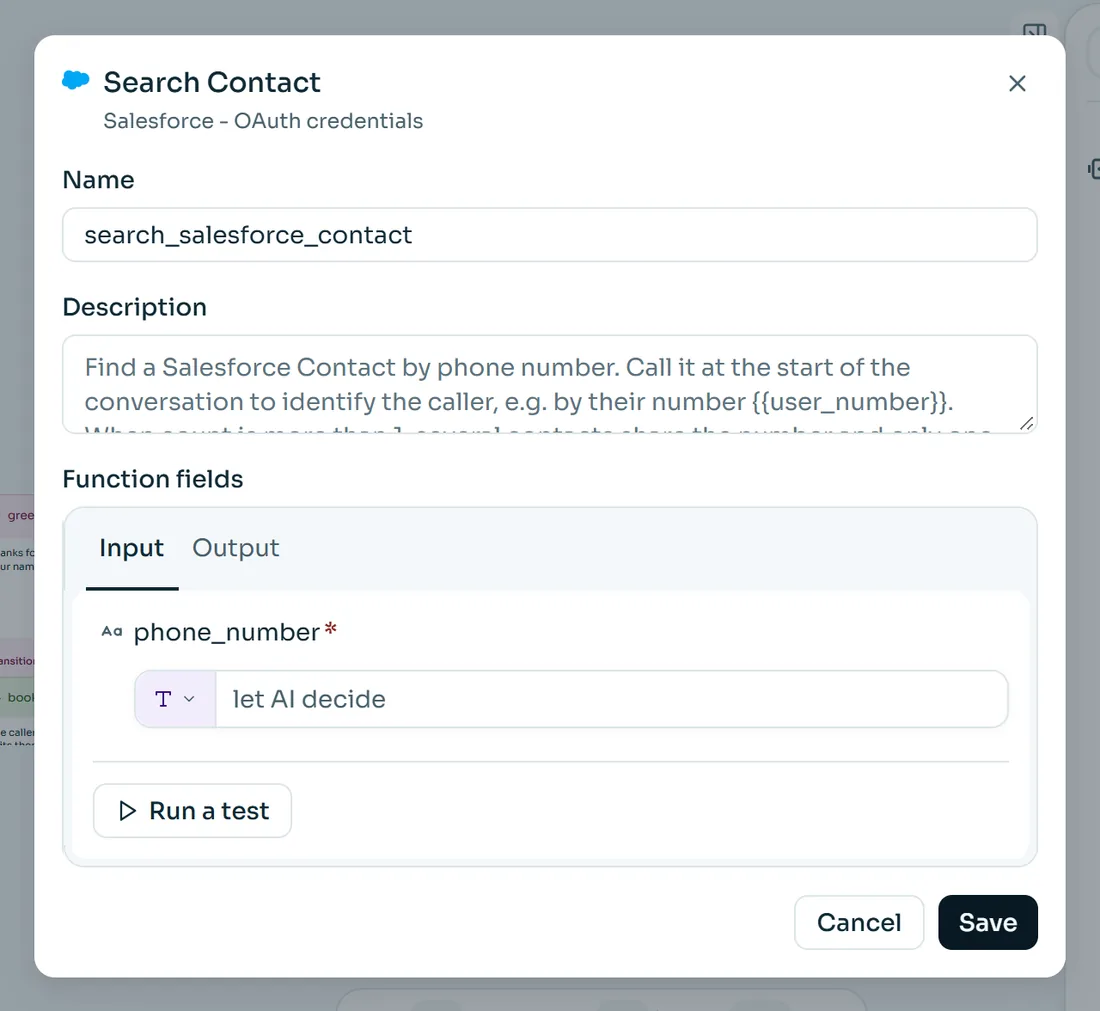
Choose what the node should do, for example Search Contact.
Set the inputs and save
For each input, let the AI decide or give it a value or a variable such as {{user_number}}. Use Run a test to try it, map what comes back on the Output tab, then click Save and Add.
Connect the node and test
Link the Function node into your flow with transitions, then run a simulation or a test call before you publish.
Open Functions and click Add
In your single prompt agent, open Functions and click Add. Your Salesforce connection is listed under Connected Integrations.
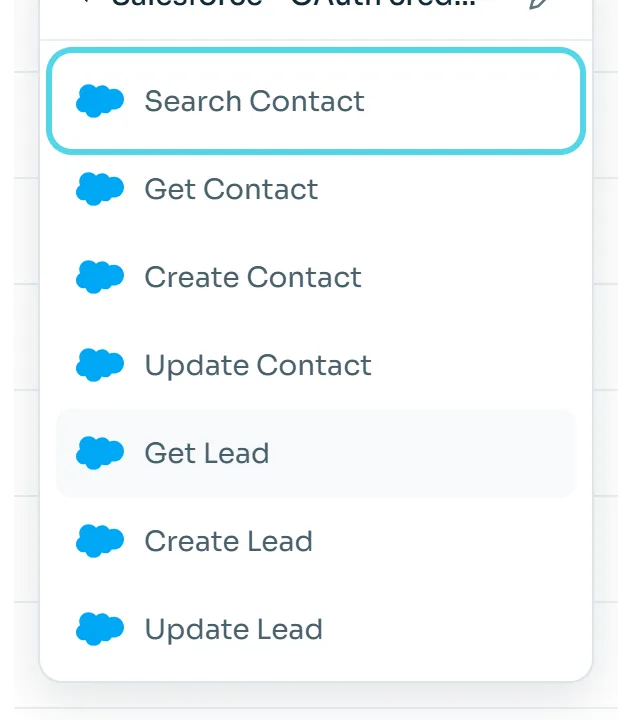
Pick the function
Choose the function the agent may call, for example Search Contact.
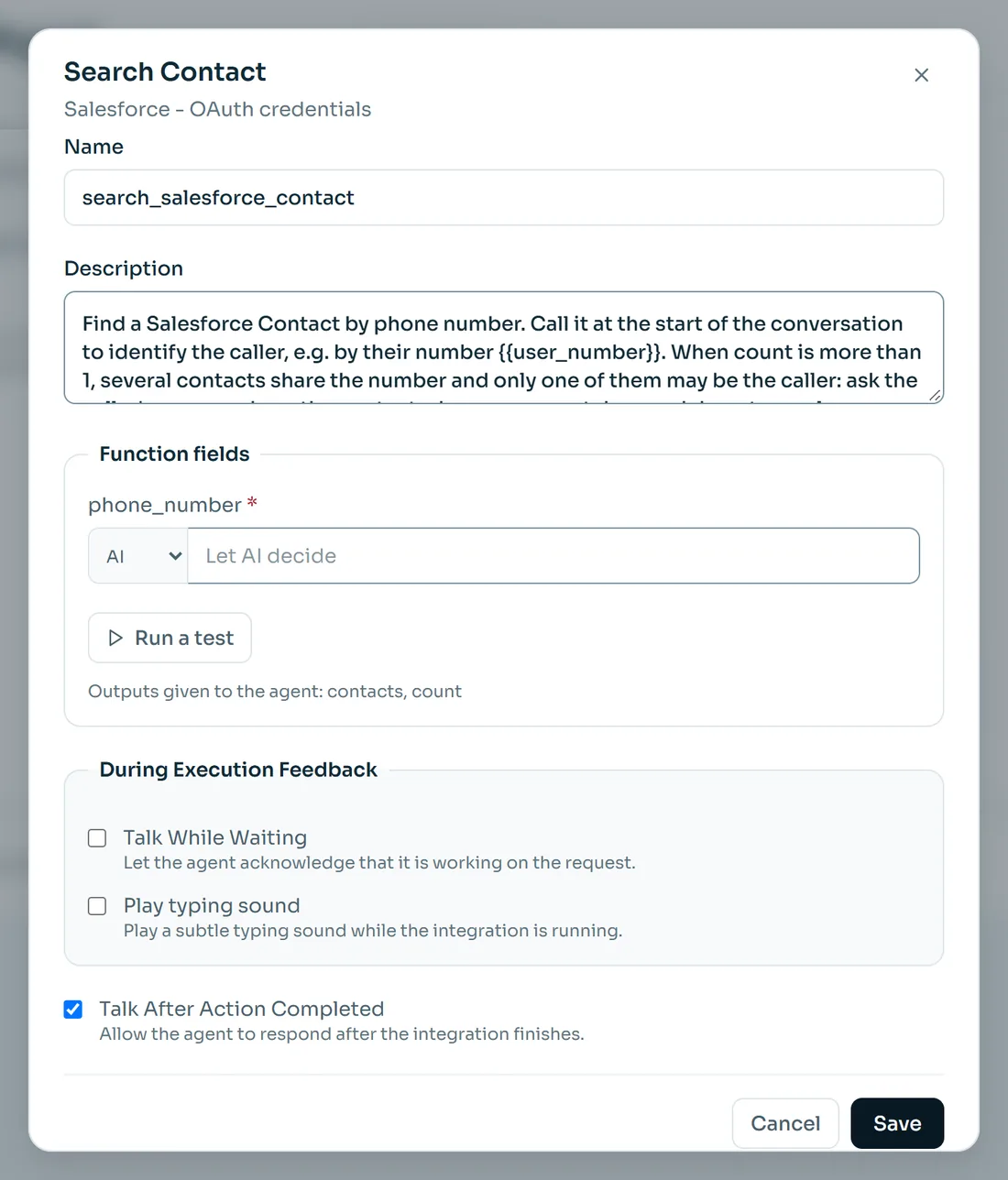
Check the settings and save
Check the name and the description the agent reads, choose for each field whether the AI fills it or you fix a value, try it with Run a test, then click Save. Mention the function in your prompt so the agent knows when to use it.
Test before you publish
Save the agent, then try it with a test call or a simulated chat. Publish when it behaves the way you want.
Before you get started.
Can the agent use my custom objects?
Yes. Choose the object when you set up Get Custom Object or Update Custom Object.
Can a caller’s words change a SOQL query?
No. Variables are inserted as escaped values, so they cannot widen or alter the query.