
Zoho CRM, updated as you talk.
Connect Zoho CRM so your voice agent finds the caller, checks their deals, and records tasks, notes and the call itself.
What your agent can do
with Zoho CRM.
Reads during the call
- Contacts by phone number
- Deals linked to the contact
Writes back
- New and updated contacts
- Tasks and notes
- A logged call with its duration and outcome
Look-up actions
- Search Contact
- Get Contact
- List Contact Deals
Update actions
- Create Contact
- Update Contact
- Create Task
- Create Note
- Log Call Activity
A call, start to finish.
- Caller rings
The agent searches Zoho by phone number; if several contacts match, it asks for the name.
- During the call
It checks the contact’s open deals.
- Wrapping up
It logs the call and adds a note and a follow-up task.
Example workflow. Your agent runs only the actions you add, with the inputs you choose.
How to connect Zoho CRM.
Step by step, with screenshots.
You will need: Zoho CRM sign-in (OAuth)
01In OpenCalls
Open Integrations in OpenCalls
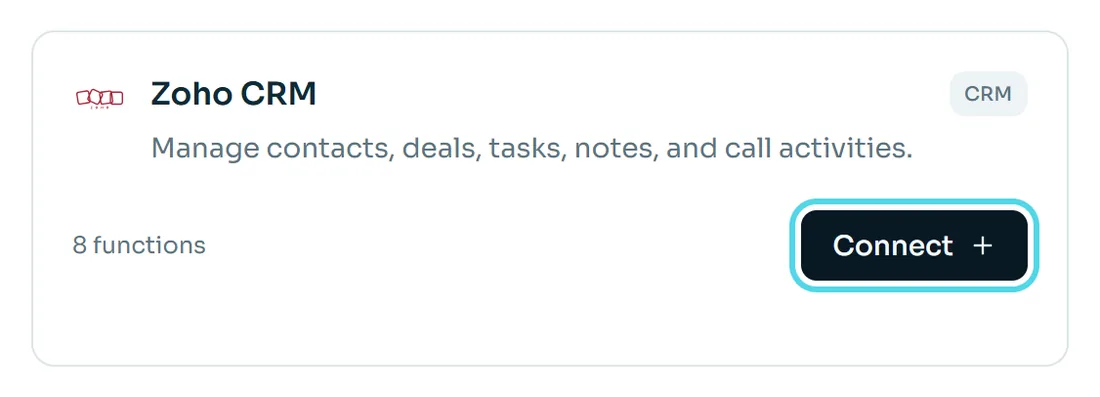
Go to Integrations, open the Available tab and click Connect on the Zoho CRM card.
Enter your connection details
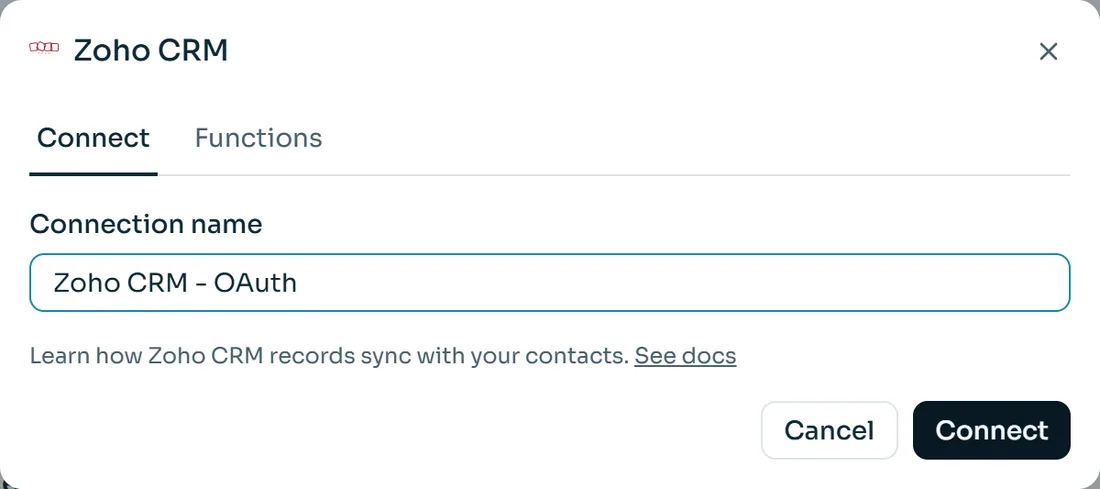
Keep or change the connection name and click Connect. There are no keys to copy.
Sign in to Zoho
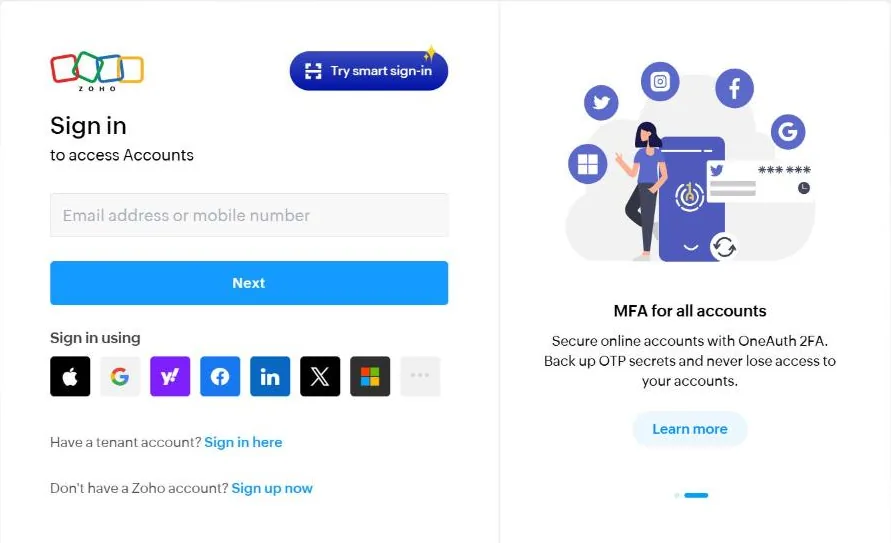
Zoho opens its sign-in page. Sign in with the Zoho account that owns your CRM.
Allow access
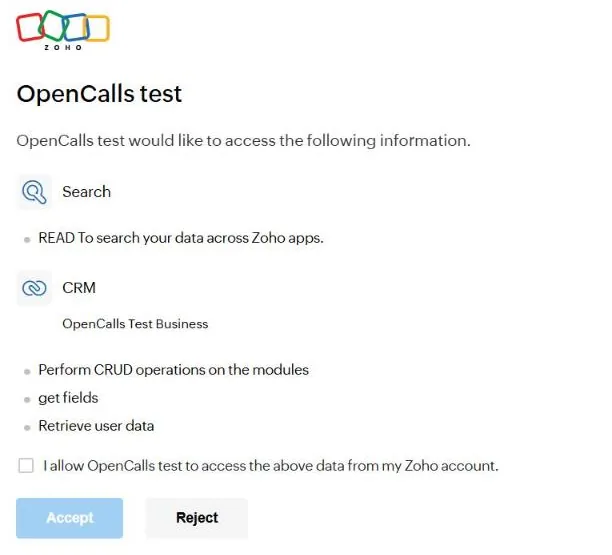
Zoho lists what OpenCalls may use: search, and reading and updating your CRM records. Tick the box, click Accept, and you return to OpenCalls with Zoho CRM connected.
02Use it in your agent
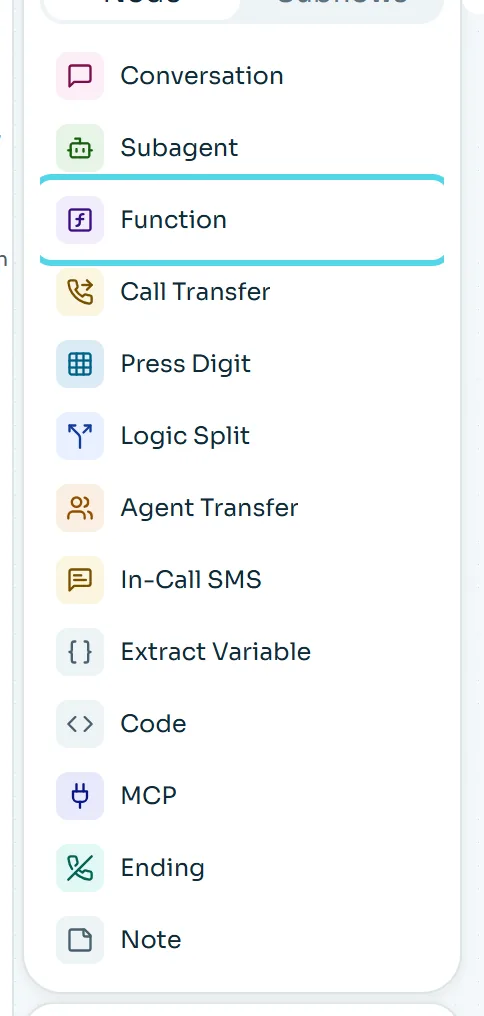
Add a Function node
Open your agent’s flow and click Function in the Node panel.
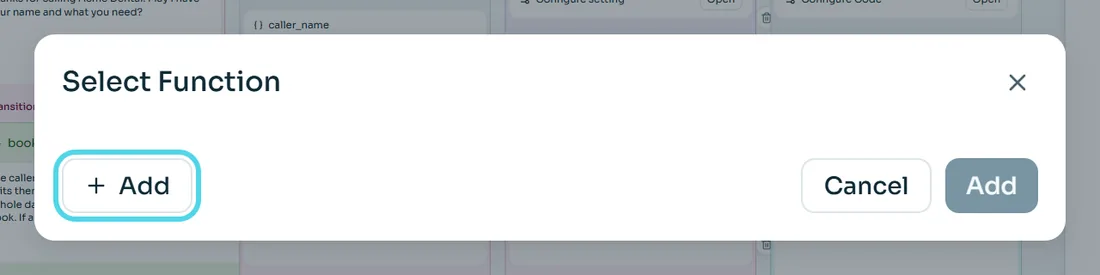
Click Add
In Select Function, click Add to pick a new function.
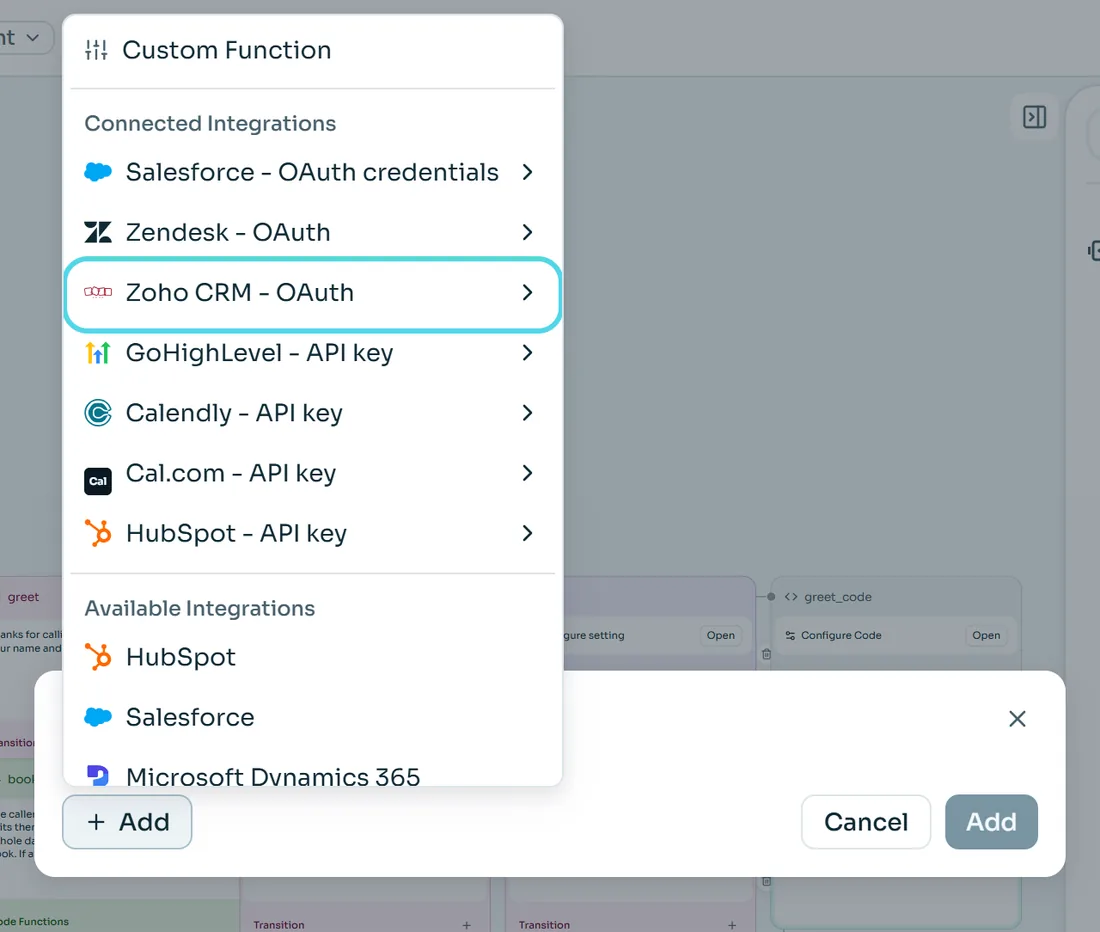
Choose your Zoho CRM connection
Your Zoho CRM connection is listed under Connected Integrations.
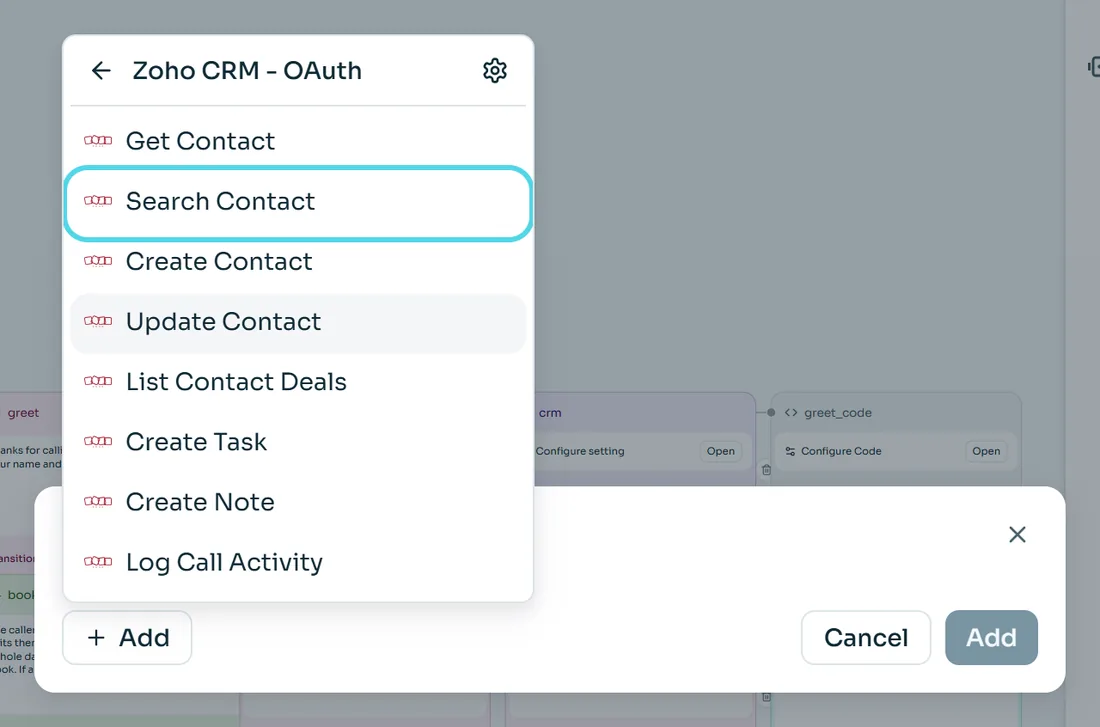
Pick the function
Choose what the node should do, for example Search Contact.
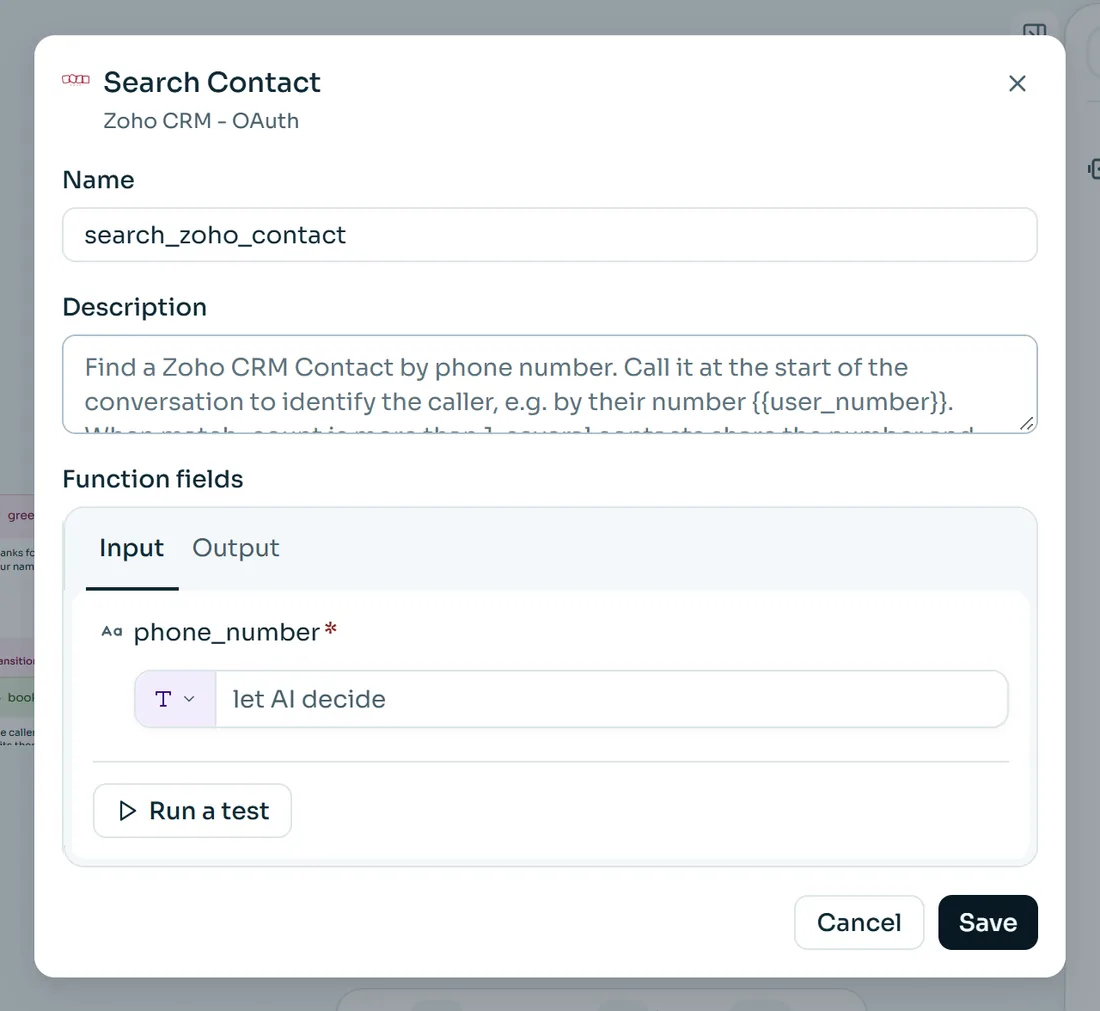
Set the inputs and save
For each input, let the AI decide or give it a value or a variable such as {{user_number}}. Use Run a test to try it, map what comes back on the Output tab, then click Save and Add.
Connect the node and test
Link the Function node into your flow with transitions, then run a simulation or a test call before you publish.
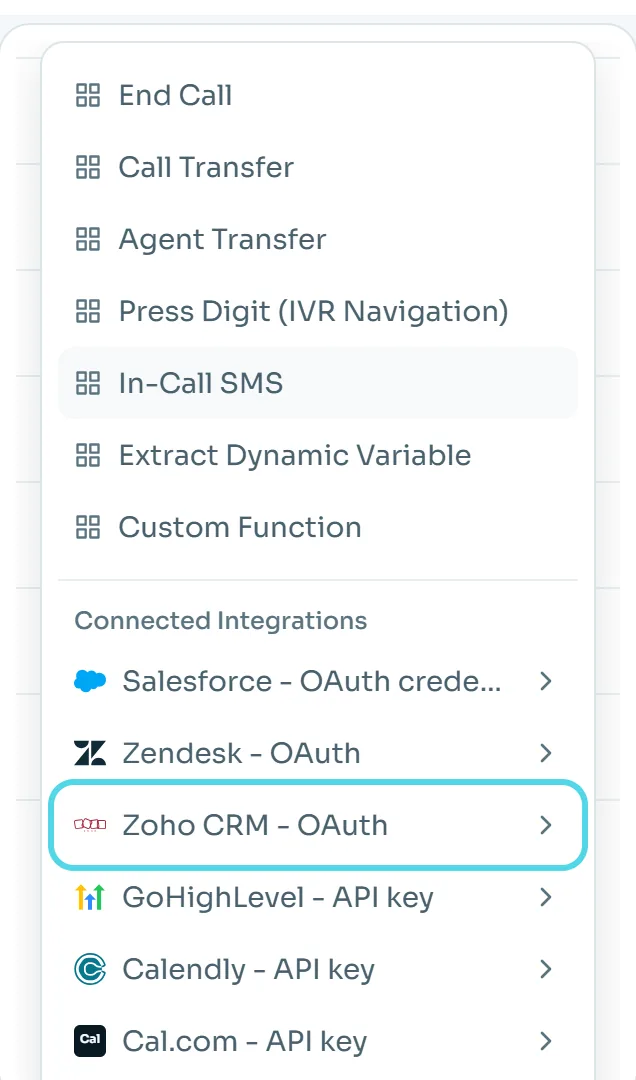
Open Functions and click Add
In your single prompt agent, open Functions and click Add. Your Zoho CRM connection is listed under Connected Integrations.
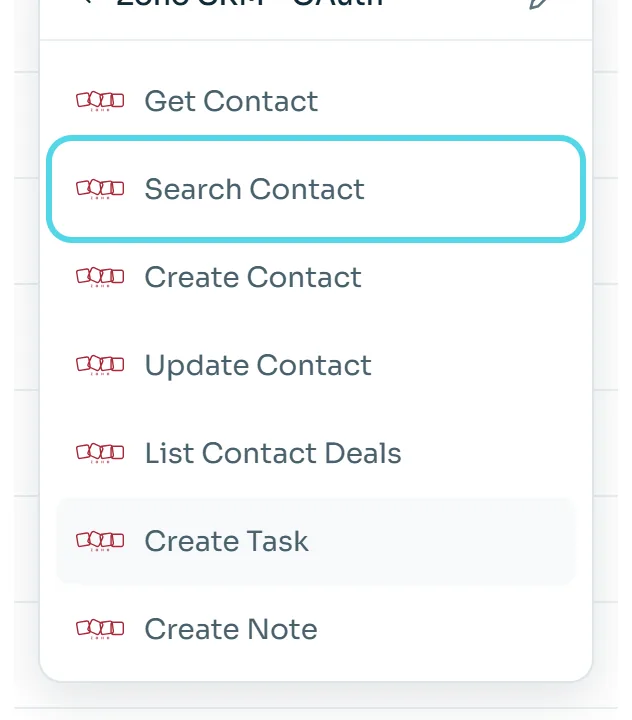
Pick the function
Choose the function the agent may call, for example Search Contact.
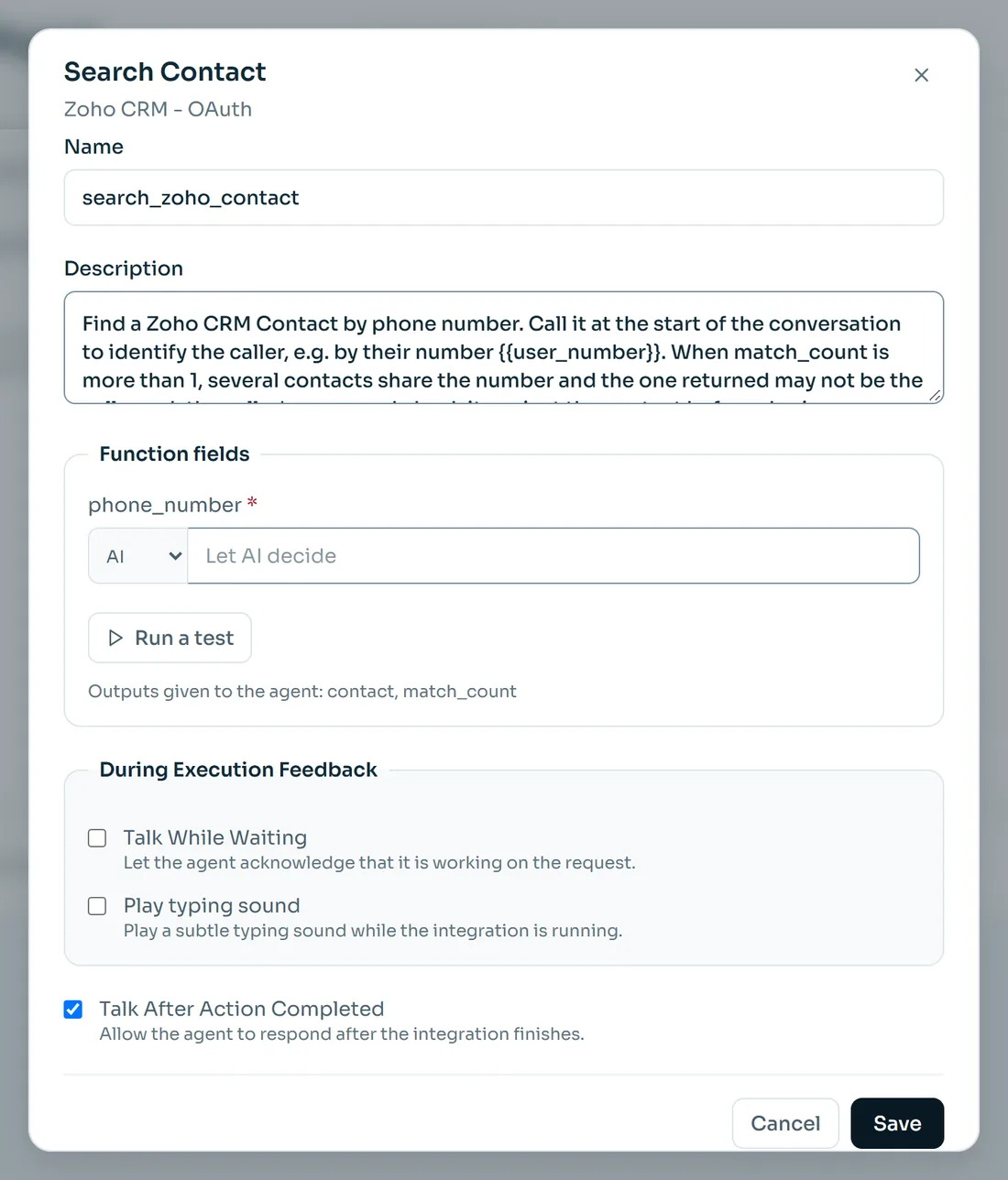
Check the settings and save
Check the name and the description the agent reads, choose for each field whether the AI fills it or you fix a value, try it with Run a test, then click Save. Mention the function in your prompt so the agent knows when to use it.
Test before you publish
Save the agent, then try it with a test call or a simulated chat. Publish when it behaves the way you want.
03After the call, in Zoho CRM
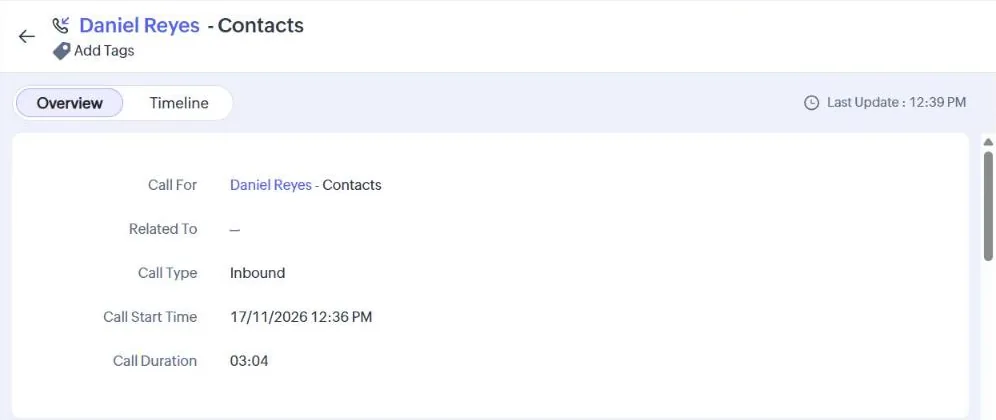
The call is logged on the contact
With Log Call Activity, the call shows up in Zoho CRM as a completed call on the contact, with its type, start time and duration.
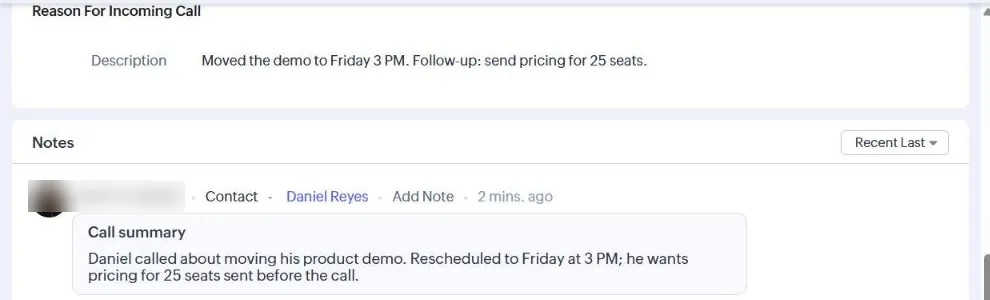
The summary is on the record
The call’s description and a Create Note summary sit on the contact’s timeline, so your team sees what was agreed and what to do next.
Before you get started.
Do I need to create keys in Zoho?
No. You sign in to Zoho from OpenCalls and allow access.