
Answers from the documents you already keep.
Connect Google Drive so the Docs and Sheets you pick become part of a knowledge base your voice agent answers from, kept in sync.
What your agent can do
with Google Drive.
Reads during the call
- The Google Docs and Sheets you pick
Writes back
- Nothing in Drive; the content is copied into your knowledge base
A call, start to finish.
- Pick files
Choose Docs and Sheets with Google’s file picker.
- Sync
OpenCalls copies them into a knowledge base and keeps it up to date.
- On the call
The agent answers from that knowledge base.
Example workflow. Your agent runs only the actions you add, with the inputs you choose.
How to connect Google Drive.
Step by step, with screenshots.
You will need: Google sign-in (OAuth), then pick files
01In OpenCalls
Open Integrations in OpenCalls
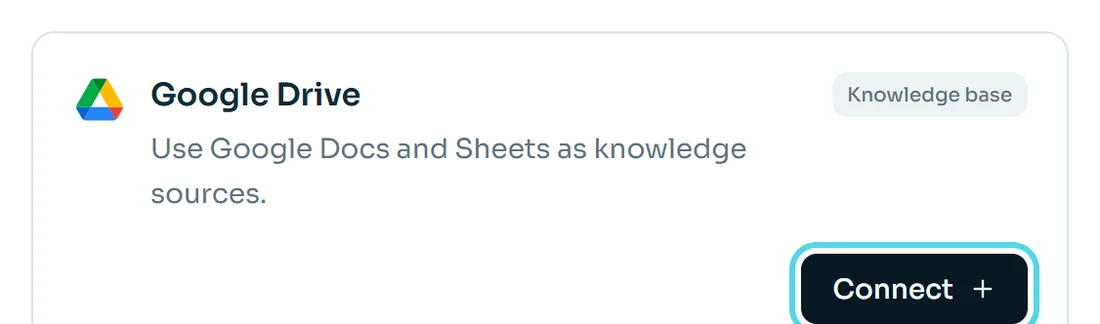
Go to Integrations, open the Available tab and click Connect on the Google Drive card.
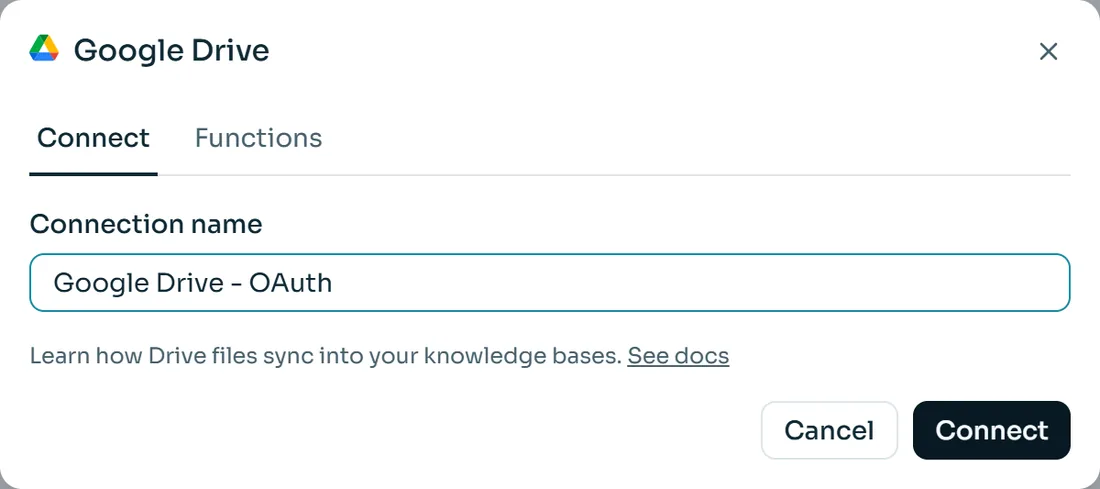
Enter your connection details
Click Connect and sign in to Google. OpenCalls can read only the files you pick.
02Build a knowledge base from Drive
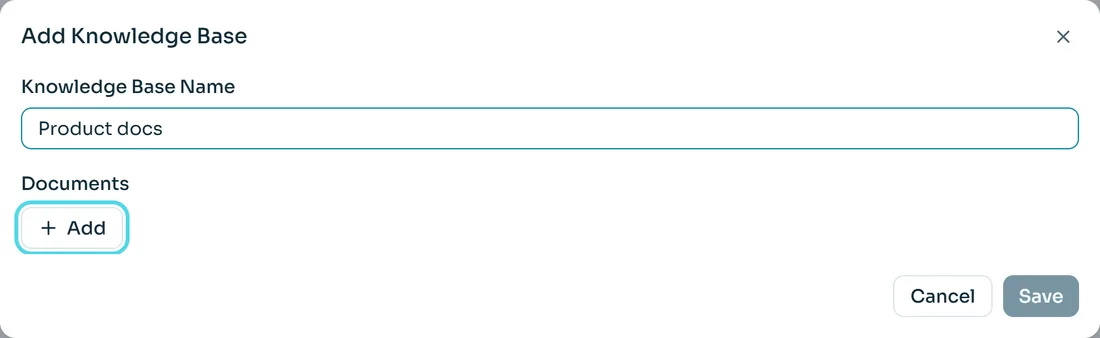
Add a knowledge base
In Knowledge Base, click Add knowledge base, give it a name and click Add under Documents.
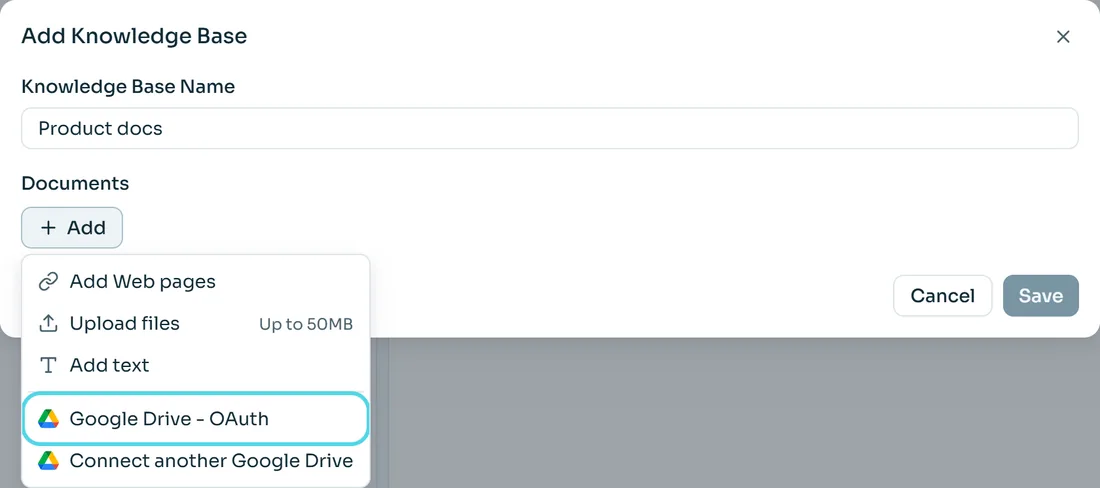
Pick files from Drive
Choose your Google Drive connection, pick the Docs and Sheets in Google’s file picker, then click Save. OpenCalls keeps them in sync.
03Use it in your agent
Attach the knowledge base
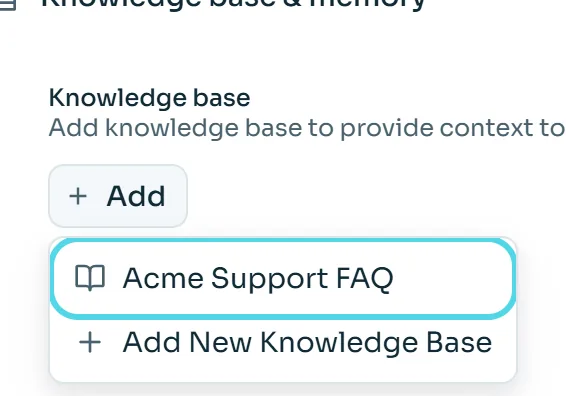
In the flow builder, open Global settings, then Knowledge base & memory, click Add and choose the knowledge base.
Test before you publish
Save the agent, then try it with a test call or a simulated chat. Publish when it behaves the way you want.
Attach the knowledge base
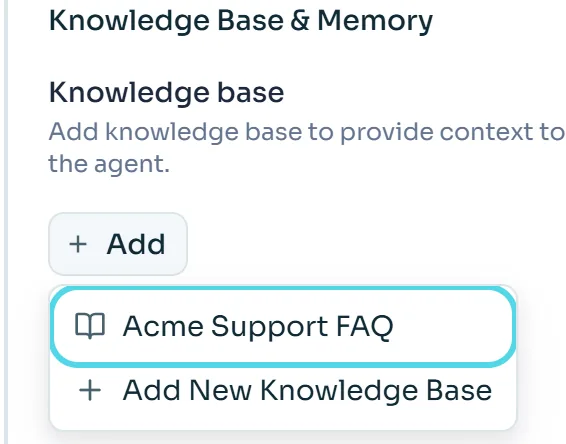
In your single prompt agent, open Knowledge Base & Memory, click Add and choose the knowledge base.
Test before you publish
Save the agent, then try it with a test call or a simulated chat. Publish when it behaves the way you want.
Before you get started.
Can the agent see my whole Drive?
No. Only the files you pick are synced.